
This queue will have the submitted Manuscripts with the decisions. Once the Reviewer completes the Review and Admin or EIC has taken the decision, then those records are displayed in this screen. When User clicks on the Manuscript title which is a hyperlink then a PDF version of the Manuscript submission Page is displayed with data in all the fields which is entered by the user and with the documents data. Displaying the documents data is based on the Order selected for the Manuscript Documents and for which include in MS check box is checked.
Manuscript Id: The manuscript ID will be displayed in the column.
Manuscript Title: This column in the grid will have the title of the Manuscript with a hyperlink. When User clicks on the Manuscript Title hyperlink, then a PDF version of the Manuscript submission page is displayed with data in all the fields entered by the user and with the documents data.
Date Submitted: This column in the grid will show the date when the Manuscript was submitted. This is the Date, when the Manuscript is submitted in to the system.
Date Decisioned: This column of the grid will show the date when a decision is taken on the manuscript. Date Decisioned should not change, it is always the date when the decision is taken on the manuscript.
Status: The status of the manuscript will be displayed in this column. The different type of status in this column are:
Accepted
Rejected
Major Revision
Minor revision
Due Date: The due date in this column is displayed based on the Configuration done in Journal Setup à Manuscript Settings screen in ‘Manuscript Major Revision Days Duration’ and ‘Manuscript Minor Revision Days Duration’ fields which displays the ‘Create a revision’ link.
Once the date has expired the ‘Create a revision’ link will not be shown to the User and the message is displayed as ‘Submission date expired-Contact Administrator if you want date to be extended’. If Admin extends the due date then Author can see the ‘Create revision’ link.
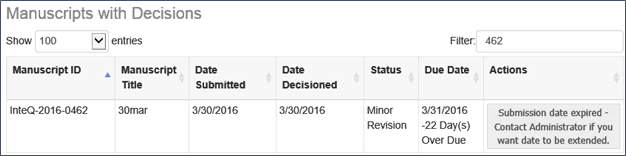
Actions: This column will have all the actions that can be taken basing on the Status of the manuscript. If status is
Accepted – The Contributor Form will be displayed once this Actions is done.
Rejected – No action
Major Revision- ‘Create a Revision’ option will be available but if the revision is already submitted for that Manuscript then the ‘Create Revision’ link will be unavailable.
Minor Revision – ‘Create a Revision’ option will be available but if the revision is already submitted for that Manuscript then the ‘Create Revision’ link will be unavailable.

Note: When user click on “Create a Revision”, then Revised Manuscript Submission screen should be displayed by pre populating the data. The Manuscripts will display all the revision history for Revised Manuscript.
NOTE: Based on the Configuration done in Journal Setup --> Manuscript Settings screen in ‘Manuscript Major Revision Days Duration’ field and in ‘Manuscript Minor Revision Days Duration’. Based on the Revision days duration given in these two fields the ‘Create Revision’ link will display for a Revised Manuscript. Once the duration expires the link for ‘Create Revision’ will disappear and the User will have to extend the Revision date by notifying Admin to do so.